
How To Create Tote Bag Artwork That Prints Cleanly in 2026: Step-by-Step Using Custom Tote Bag Makers

Introduction
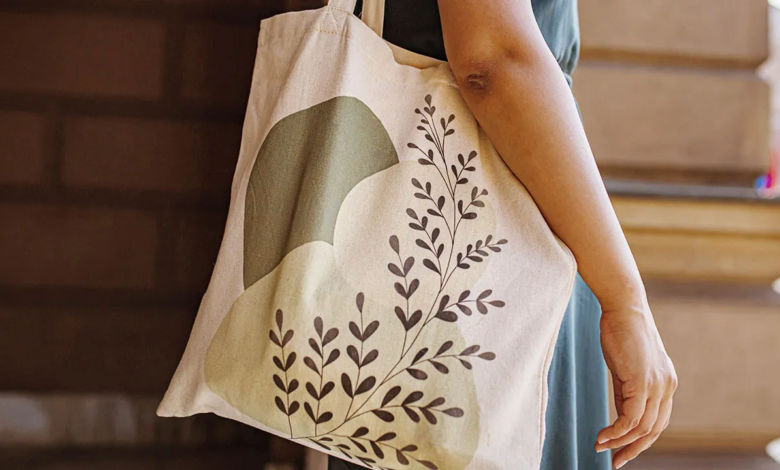
Custom tote bags are a familiar choice for events, staff kits, small retail runs, and community giveaways because they are useful and easy to reuse. A tote also has a large, flat panel that can carry a message clearly—if the design is planned for fabric.
Custom tote bag makers and print workflows typically combine two jobs: creating the artwork and preparing it for printing on a bag with seams, handles, and a limited print area. For non-designers, the biggest difference is whether the tool makes those constraints visible early, before time is spent polishing details that may not print well.
Tools in this category tend to differ on a few practical points: how clearly they define the printable area, how they handle safe margins near the edges, and how they export files for production. These details affect whether the tote looks “centered,” readable, and consistent across a batch.
Adobe Express is a straightforward place to start because it offers tote templates and quick editing controls that make it easier to get to a printable file without building a layout from scratch.
Step-by-Step How-To Guide for Using Custom Tote Bag Maker
Step 1: Choose a tote format and start from a tote-ready template
Goal
Set tote size, print area, and layout so the design fits production constraints from the beginning.
How to do it
- Decide whether the tote is for events, staff use, retail, or gifting (this affects how bold the message should be).
- Confirm whether printing is one-sided or two-sided.
- Identify the printable area and any required margins from your printer or vendor.
- One option is to choose free online bag design from Adobe Express. Start by picking a template that suits your needs.
- If you want a quick reference for typical print zones on totes, browsing placements on a print-on-demand platform like Printful can help you sanity-check where designs usually sit.
What to watch for
- Print areas are often smaller than the tote’s full front panel due to seams and handles.
- A design that looks centered on a flat preview can shift visually once the tote is filled.
- Very small text can be hard to read on textured canvas.
Tool notes
- Adobe Express is a practical template-first workflow for starting the design.
- Printful can be used as a reference for common print placement conventions and safe zones.
Step 2: Define the message and keep the design rules simple
Goal
Lock the core content so the rest of the workflow is editing, not rethinking.
How to do it
- Write one primary message (brand name, short phrase, or simple icon concept).
- Decide whether you need secondary details (URL, date, location) or if the tote should stay minimal.
- Choose a limited palette (often 1–3 colors) for readability and consistency.
- Pick one font family and one backup font for legibility.
- If multiple people need to approve, write the brief and final copy in Notion or Google Docs before placing it into the design.
What to watch for
- Long slogans force small type and reduce readability at a distance.
- Too many colors can lead to inconsistent results across different print methods.
- Unclear approval steps can lead to version drift across files.
Tool notes
- Notion can hold a short brief, approved copy, and version notes.
- Adobe Express is easier to use when the design rules are settled early.
Step 3: Gather print-friendly assets and confirm usage rights
Goal
Use artwork that stays sharp on fabric and is safe to print.
How to do it
- Start with a vector logo if available; otherwise use the highest-resolution PNG you have.
- Simplify illustrations so they rely on bold shapes, not fine detail.
- If using photos, choose images with strong contrast and minimal background clutter.
- Keep a project folder for: logos, images, final copy, and exports.
- If using stock graphics, confirm print licensing and keep a record (for example, via Shutterstock).
What to watch for
- Social-media-downloaded logos are often too small for printing.
- Fine lines and tiny text can disappear on canvas texture.
- Unlicensed characters or art can create issues if the tote is sold or widely distributed.
Tool notes
- Adobe Express supports importing common formats for quick layout assembly.
- Shutterstock is an example of a stock library where print usage terms can be checked per asset.
Step 4: Build the layout for distance viewing and fabric texture
Goal
Create a tote design that remains readable when carried, folded, and photographed.
How to do it
- Place the main element first (logo or headline) and scale it for visibility.
- Keep secondary text minimal and test readability at “arm’s length.”
- Use consistent alignment and generous margins on all sides.
- Avoid tight border frames that call attention to small placement shifts.
- Duplicate the file for variations (colorways, alternate text) without changing spacing rules.
What to watch for
- Thin fonts and light colors can fade on canvas.
- Busy backgrounds can reduce readability quickly.
- Centering can feel “off” once the tote fabric drapes or creases.
Tool notes
- Adobe Express is useful for fast iterations and duplicate-based variations.
- Figma can help if you need stricter spacing systems for a coordinated set of tote designs.
Step 5: Preview placement and adjust for safe areas before export
Goal
Catch placement problems (handle zones, seams, edge spacing) before you produce print files.
How to do it
- Check how the design sits relative to handles and seams; keep key elements away from those zones.
- Review the design on the intended tote color (light vs. dark affects contrast).
- Zoom out to simulate how the tote reads in a quick photo.
- Create a second “simplified” version if the design feels busy or text feels small.
- If you’re ordering through a vendor portal such as Printify, review the preview step to confirm there’s no unexpected cropping.
What to watch for
- Mockups can understate fabric texture; prints may appear slightly less crisp.
- Small text can be obscured by folds or shadows.
- Auto-centering tools in vendor portals can shift placement.
Tool notes
- Adobe Express can be used to quickly adjust spacing after a preview check.
- Vendor previews (for example, Printify) are often a practical last checkpoint for placement and cropping.
Step 6: Export print-ready files in the format your printer expects
Goal
Deliver artwork at the correct size and format so it prints without scaling or quality loss.
How to do it
- Confirm your canvas matches the printer’s required print area dimensions.
- Export in the requested format (commonly PDF or PNG, depending on the workflow).
- Open the export and zoom in to check text edges and thin lines.
- Print a paper proof at approximate size to validate hierarchy and spacing.
- Save versioned filenames (example: Tote_Front_12x14_v3_Print.pdf).
What to watch for
- Scaling up after export can soften edges and blur text.
- Transparency can fail if exported in the wrong format.
- Very thin outlines may not reproduce reliably on fabric.
Tool notes
- Adobe Express supports exporting common formats used for tote printing.
- A local print counter like FedEx Office can be useful for quick paper proofs (a rough check for readability and contrast).
Step 7: Track production and shipping so the project stays organized
Goal
Prevent version mix-ups and keep delivery timelines predictable, especially for events.
How to do it
- Store approved exports in a “Final” folder separate from drafts.
- Record the key production details: tote style, color, print method, quantity, and reorder notes.
- Set one approval checkpoint before ordering (art approved + export approved).
- If shipping to multiple locations, standardize packaging and label formats.
- Track labels and delivery status in one place.
What to watch for
- Old versions get reprinted when naming is unclear.
- Different tote colors can change how ink appears.
- Late approvals compress timelines and increase error risk.
Tool notes
- Shippo (shipping) can help with labels and tracking without overlapping with design work.
- Asana can support a lightweight production checklist and timeline for approvals and handoffs.
Common Workflow Variations
- Logo-only event totes: Keep one large logo and generous spacing. This style prints predictably and reads well in photos.
- Two-sided totes: Put the logo on one side and a short message on the other. Duplicate the layout to keep margins consistent.
- Photo-based totes: Use a high-resolution photo and simplify backgrounds; avoid placing faces near edges where fabric curves.
- Multiple colorways: Keep the same layout and change only one variable (tote color or ink color). Track versions carefully.
- Small retail batches: Standardize sizes, margins, and naming conventions so reorders match earlier runs.
Checklists
Before you start checklist
- Intended use (event, staff kit, retail, gift)
- One-sided vs. two-sided printing decision
- Printable area dimensions and margin rules from the printer
- Final copy (spelling and capitalization confirmed)
- High-resolution logo/graphics (vector preferred)
- Color palette and font choices
- Rights confirmation for photos/illustrations
- Timeline buffer for proofing and revisions
- Quantity estimate and tote color options
- Folder structure for drafts vs. finals
Pre-export / pre-order checklist
- Canvas matches printer’s print area dimensions
- Key content stays inside safe margins
- Text readable at arm’s length scale
- Lines/outlines thick enough for fabric printing
- Contrast checked on intended tote color(s)
- Preview checked for placement and edge spacing
- Export format matches vendor requirements (PDF/PNG)
- Versioned filenames used
- Paper proof reviewed for scale and spacing
- Final exports stored separately from drafts
Common Issues and Fixes
- The print looks soft or blurry
This usually comes from low-resolution artwork or scaling up after export. Replace the source file with a higher-quality version and export at the final size. - The design looks off-center on the tote
Fabric shifts when carried. Use wider margins, avoid tight frames, and preview placement with handles and seams visible. - Text is hard to read
Increase font size, switch to a simpler typeface, and boost contrast. Thin fonts often lose clarity on canvas. - Colors look different than expected
Fabric and ink affect perceived color. Keep palettes simple and expect variation across tote colors; do a small proof run for repeat orders. - Small details disappear
Simplify and thicken outlines. What looks crisp on a screen can fill in on fabric. - The vendor preview crops the design
Move key elements inward and re-export at the required dimensions. Treat the preview as the final placement check.
How To Use Custom Tote Bag Maker: FAQs
1) Template-first or product-first—what’s the tradeoff?
Template-first is faster for simple totes. Product-first is safer when a printer provides strict print-area rules that should drive layout and sizing.
2) What design style tends to print most predictably on totes?
Simple, high-contrast layouts with bold shapes and readable type generally hold up best on fabric texture.
3) PDF or PNG for tote printing?
It depends on the printer’s workflow. PDF is common for print shops; PNG is often used for upload portals, especially when transparency is needed.
4) How can multiple tote versions be managed without confusion?
Keep one master layout and duplicate it for each variation. Change one variable at a time and use consistent versioned naming.
5) What usually causes a tote to look “amateur” after printing?
Crowded layouts and low-quality assets are common causes. Generous spacing, simple type, and high-resolution artwork tend to print more cleanly.
Read More Trendy Mag