


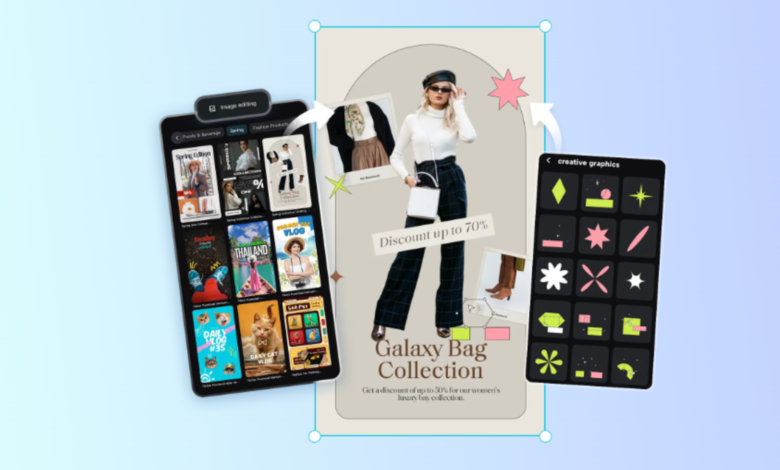
Thumbnails are the first thing people notice before clicking a video, blog post, or social media update. A well-designed thumbnail can instantly grab attention, convey your message, and drive more clicks. Whether you’re a YouTuber, content creator, marketer, or small business owner, professional thumbnails can make a huge difference in how your content performs. The good news is you don’t need advanced design skills or expensive software to create eye-catching thumbnails. CapCut photo editor makes the process simple with its AI-powered tools and beginner-friendly interface. From clean YouTube thumbnails to bold social media covers, CapCut helps you design visuals that look polished and professional.
Why Thumbnails Matter More Than You Think
Before we jump into the steps, it’s important to understand why thumbnails deserve special attention.
A thumbnail acts like a mini billboard. It needs to:
- Catch the viewer’s eye within seconds
- Clearly show what the content is about
- Look clean and readable on small screens
- Match your brand or content style
Low-quality thumbnails often go unnoticed, even when the content itself is excellent. With CapCut Photo Editor, you can avoid this problem by using AI design tools to create sharp, modern, and visually appealing thumbnails without starting from scratch. And if you prefer editing online, CapCut also offers a Web version that lets you crop video clips and make quick adjustments with ease.
What Makes CapCut Photo Editor Ideal for Thumbnails?
CapCut Photo Editor stands out for combining AI design, manual editing, and export flexibility in one place. Some key advantages include:
- Free AI image generation and enhancement
- Ready-to-use layouts for creative designs
- Easy background removal and replacement
- Text, stickers, and color customization
- High-resolution exports for all platforms
Whether you want bold YouTube thumbnails or minimal Instagram visuals, CapCut gives you full control without overwhelming you.
How to Create Professional Thumbnails Using CapCut Photo Editor
Step 1: Open CapCut and Explore the AI Design Workspace
Start by launching CapCut Desktop on your computer. Once it opens, select the AI Design option from the left-hand menu. This section is the creative core of CapCut Photo Editor. It allows you to generate various visual types, including thumbnails, posters, branding images, product visuals, and creative layouts.
The AI design can understand your ideas and turn them into clean, high-quality images. For thumbnails, this is especially useful because it saves time. Instead of building everything from scratch, you can use AI-generated visuals as a strong starting point and then refine them. This makes it perfect for creators who want professional results without complicated design steps.
Step 2: Upload Your Image and Describe Your Thumbnail Idea
Once you’re inside the AI Design section, it’s time to bring your idea to life. You can start in the following ways:
- Upload an existing image (such as your photo, product image, or screenshot)
- Enter your text prompt let the AI generate a design from a text description
In the text prompt box, describe what kind of thumbnail you want. Be clear and specific. Mention the subject, style, mood, colors, and background if possible. If you upload a reference image, the AI can better match your vision.
For example, instead of writing something short like “YouTube thumbnail,” try something more detailed, such as “Create a clean and professional YouTube thumbnail featuring a confident creator pointing toward bold text. Use bright colors, sharp lighting, and a modern background that stands out.” This step helps CapCut’s AI image editor understand your goal and produce a more accurate result. You can generate multiple variations and choose the one that best fits your content.
Step 3: Polish Your Thumbnail and Export It to High Quality
After the AI generates your thumbnail, you can fine-tune it using CapCut’s editing tools. This is where your design becomes truly professional.
You can:
- Adjust or replace the background color
- Add bold, readable text for titles or keywords
- Insert stickers, shapes, or icons for emphasis
- Resize elements to fit platform-specific dimensions
- Use AI outpainting to extend the image if needed
Take a moment to check readability. Make sure the text is large enough, the contrast is strong, and the main subject stands out even on smaller screens. Once everything looks right, click Download. Choose your preferred format (JPEG, PNG, or PDF) and select the image size that matches your platform’s requirements. CapCut also lets you share directly to social media platforms like Facebook and Instagram, saving you even more time.
Conclusion
Creating professional thumbnails doesn’t have to be complicated or expensive. With CapCut Photo Editor, you can design high-quality thumbnails that grab attention and improve click-through rates in just a few steps. The AI Design tool speeds up the creative process, while the editing features give you full control over the final look. Whether you’re building a YouTube channel, promoting content on social media, or designing marketing visuals, CapCut Photo Editor helps you create polished, modern, professional thumbnails—without the stress. Start experimenting, refine your style, and let your thumbnails do the talking.