

Mastering Group Decision-Making: The Ultimate Step-by-Step Guide on How to Create a Poll on WhatsApp for Effective Communication and Quick Feedback

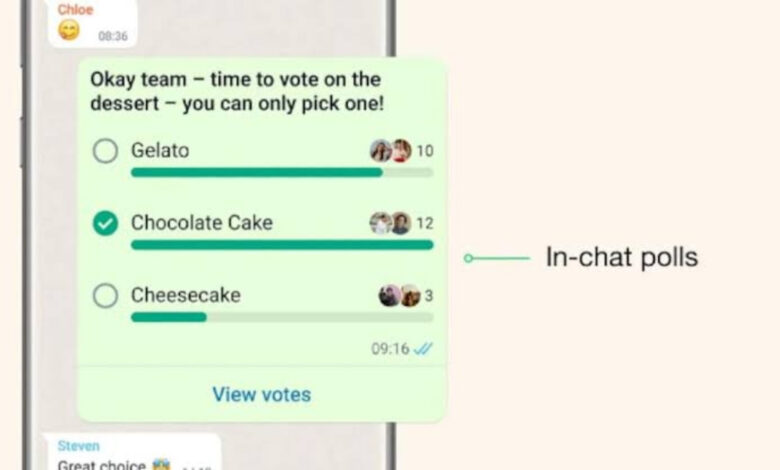
Creating a poll on WhatsApp is a highly efficient way to streamline decision-making within any conversation, whether you are coordinating plans with friends or gathering feedback in a professional setting. By leveraging this built-in feature, you can avoid the clutter of endless text messages and instantly see a clear summary of opinions or preferences. This tool is designed for speed and simplicity, making it the perfect solution for busy groups who need to reach a consensus without the hassle of external survey apps. Mastering this skill will undoubtedly save you time and keep your digital interactions organized and productive.
| Feature | Details |
| Primary Goal | Effortlessly create a poll on WhatsApp |
| Availability | Individual and group chats |
| Option Limit | Up to 12 distinct choices |
| Key Toggle | Allow multiple answers (ON/OFF) |
| Visibility | Real-time results, non-anonymous |
Understanding the Versatility of WhatsApp Polls
When you decide to create a poll on WhatsApp, you are choosing a versatile tool that works seamlessly across all platforms. Whether you use an Android device or an iPhone, the functionality remains consistent, allowing everyone to participate regardless of their operating system. This universality makes it a reliable choice for diverse groups where members might be using different types of smartphones. By understanding that this feature is integrated directly into the app, you can rely on it as a permanent part of your communication toolkit, always available whenever a quick vote or opinion is needed by the group.
Accessing the Poll Feature on iPhone
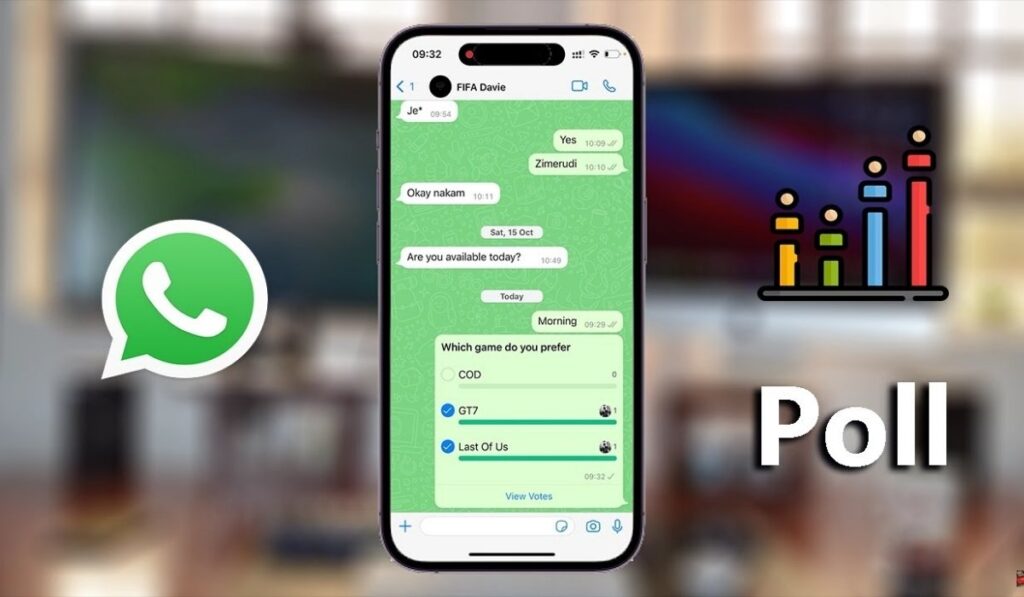
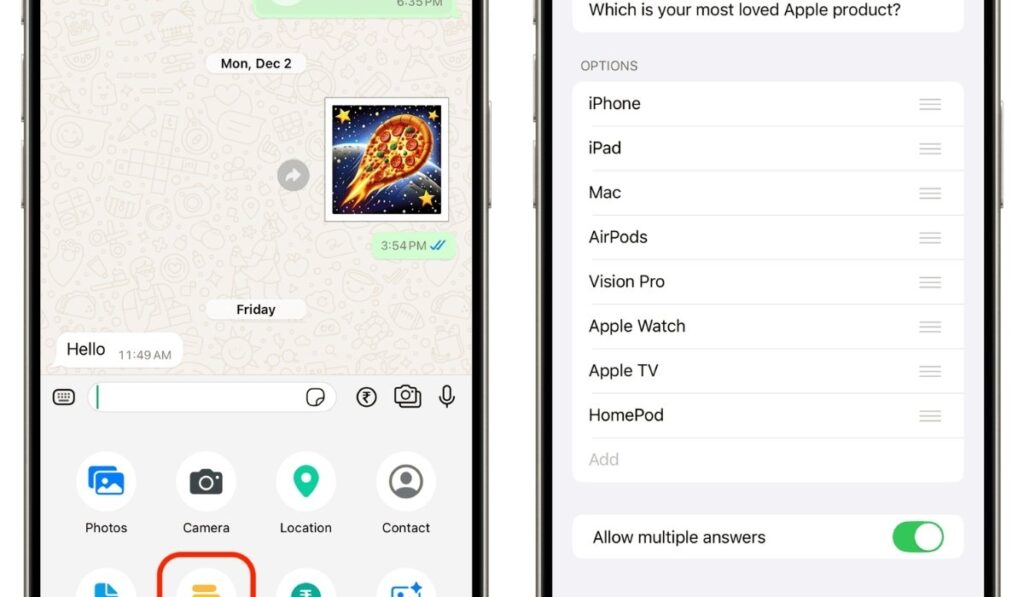
To create a poll on WhatsApp using an iPhone, start by opening the specific chat or group where you want to post your question. Look for the plus (+) icon located on the left side of the text input bar. Tapping this will reveal a menu of attachment options. From this list, select the “Poll” icon. This intuitive process ensures that even those less familiar with the app can quickly find the necessary tools. Once the poll interface opens, you are ready to start drafting your question and defining the possible answers for your participants.
Initiating a Poll on Android Devices
If you are using an Android device, the steps to create a poll on WhatsApp are nearly identical, with only minor visual differences. Within the chat, locate the attachment icon, which typically looks like a paperclip or a plus sign, situated near the text field. Tapping this icon will display a variety of media and document options, including the “Poll” feature. Simply tap it to begin the setup. This consistency across platforms is a major advantage, as it ensures that you don’t have to relearn the process if you ever switch your primary mobile device or operating system.
Crafting Your Question for Maximum Clarity
When you create a poll on WhatsApp, the question you write is the most important element for getting accurate results. Keep your inquiry short, direct, and unambiguous to ensure that all participants understand exactly what they are voting for. Remember that the question field is limited to 255 characters, so brevity is key. A well-worded question prevents confusion and encourages higher participation rates. Take a moment to consider if your phrasing leaves room for misinterpretation; a clear, focused question will always lead to better, more actionable data from your group members or individual contacts.
Defining Your Answer Options
You can provide up to 12 different choices when you create a poll on WhatsApp, giving you plenty of flexibility for most scenarios. Simply type your desired options into the fields provided. Create a Poll on WhatsApp If you need more slots, the app allows you to add them dynamically as you go. Consider using emojis alongside your text to make the choices more engaging and visually distinct, which often increases the likelihood of people clicking an option. By organizing your answers logically, you help participants make their selections quickly, which is essential for maintaining the momentum of the conversation in your chat.
Utilizing the Multiple Answers Toggle
One of the most important settings to check when you create a poll on WhatsApp is the “Allow multiple answers” toggle. By default, this is turned on, meaning users can vote for as many options as they like. If you need a single, definitive winner—such as choosing one specific date for a meeting—you should toggle this feature off. Making this decision before you hit the send button is crucial because you cannot change the settings once the poll is live. Create a Poll on WhatsApp Choosing the right mode ensures that your final results perfectly match your specific needs.
Managing the Order of Your Options
If you are not satisfied with the sequence of your choices while you create a poll on WhatsApp, you can easily rearrange them. Simply tap and hold the three lines next to any option, then drag it up or down to your preferred position. This feature is particularly useful if you want to group similar answers together or place the most likely choices at the top of the list for better visibility. Maintaining a logical order improves the overall user experience and ensures that your poll looks professional and easy to navigate for everyone involved.
Sending Your Poll into the Chat
Once you have finalized your question, configured your options, and adjusted the multiple-choice settings, you are ready to create a poll on WhatsApp by sending it. Tap the send button—usually an arrow—to post the poll directly into your chat. It will appear as a new message bubble that members can interact with immediately. Because the poll is treated like a regular message, it will stay in the chat history, allowing people to scroll back and see it whenever they are ready to cast their votes, ensuring no one misses the opportunity to participate.
Monitoring Real-Time Results
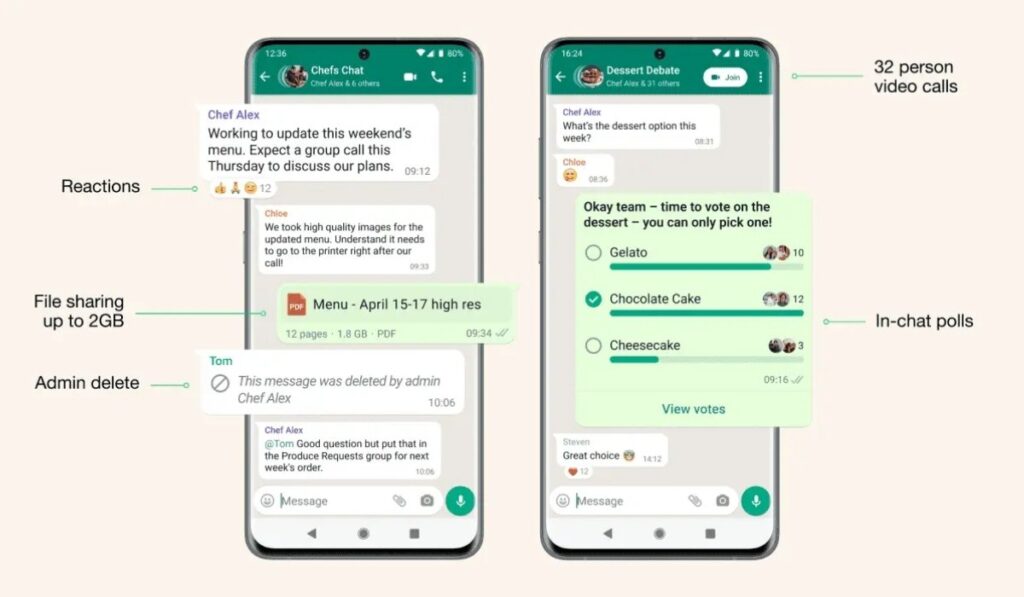
After you create a poll on WhatsApp, you don’t have to wait for a summary; you can see the results update in real-time as people cast their votes. Tap on the “View votes” button located within the poll message to see who has chosen which option. This transparency is a powerful feature that encourages accountability and helps everyone in the group stay informed about the collective decision. Because the results are visible to everyone, there is no need to manually count or report the outcome, making the entire process completely autonomous and highly efficient for the organizer.
Understanding the Visibility of Votes
It is important to note that when you create a poll on WhatsApp, the process is not anonymous. Every participant can see exactly how others have voted by viewing the poll details. This is an intentional design choice by WhatsApp to foster open communication and prevent fake entries. While this is perfect for casual groups, keep in mind that it might not be suitable for sensitive topics where privacy is required. If your goal is truly anonymous feedback, you might need to look for a specialized external survey tool rather than using the built-in polling feature.
Removing or Changing Your Own Vote
Participants who vote after you create a poll on WhatsApp are not permanently locked into their choice. If someone changes their mind, they can simply tap their selected option again to remove their vote, or tap a different option to switch their preference. This flexibility is great for groups that are still debating the finer details of a plan. The real-time nature of the system means that the total counts will automatically adjust whenever a user updates their choice. This ease of interaction keeps the group dynamic fluid and prevents frustration during the decision-making process.
Handling Polls in One-on-One Chats
While most people create a poll on WhatsApp for groups, it is equally functional in private, one-on-one conversations. This is particularly useful when you need to make a firm decision with a partner, such as choosing between two different restaurant options or deciding on a specific weekend activity. Having a formal, visual voting structure can help break a tie or provide a clear record of what was decided. It elevates a simple back-and-forth text conversation into a structured interaction, making the process of coming to an agreement much faster and more definitive for both people involved.
Syncing Polls Across Multiple Devices
One major benefit when you create a poll on WhatsApp is the seamless synchronization across devices. If you send a poll from your smartphone, it will instantly appear on your WhatsApp Web or Desktop application. This allows you to monitor results from your computer, which is often easier if you are working or managing a large group. Because the data is synced via your account, you never have to worry about missing updates, regardless of which device you are currently using to access your chats. This cross-platform reliability is a cornerstone of the modern WhatsApp experience.
Troubleshooting Common Polling Issues
If you find that you cannot create a poll on WhatsApp, the most common fix is to ensure your app is fully updated to the latest version via the App Store or Google Play Store. Older versions may not support the polling feature. If the update doesn’t solve the problem, try restarting your device or checking your internet connection. In rare cases, clearing your cache or reinstalling the app might be necessary. Most issues are simply due to outdated software, so keeping your application current is the best way to ensure all features work as expected.
Limitations of Built-in WhatsApp Polls
When you create a poll on WhatsApp, keep in mind that it is meant for simple, quick decisions. It does not support complex survey logic, multiple questions in one poll, or advanced data export. You cannot set an expiration date or an automated timer for the poll. If your objective is a formal research study or a professional business survey, you might find the built-in tool too basic. For those advanced needs, consider using a dedicated external service that generates a link which can then be easily shared within your WhatsApp chat.
Best Practices for Successful Voting
To ensure the best response rate when you create a poll on WhatsApp, try to post your questions at times when your group is most active. If you are coordinating a large event, it can also be helpful to follow up the poll with a text message reminder, such as “Please cast your vote by 5 PM!” Although the poll itself doesn’t expire, setting a clear deadline in the chat will nudge members to participate sooner. Adding a friendly comment along with the poll can also help build engagement and encourage more people to take the time to vote.
Enhancing Polls with Visual Elements
Don’t be afraid to add some personality when you create a poll on WhatsApp. While text is the primary medium, using emojis in both your question and your options can make the poll stand out in a long chat history. A well-designed, colorful poll is more likely to grab the attention of distracted group members than a boring block of plain text. Remember, the goal is to make participation feel fun and effortless. A little bit of creativity goes a long way in making your poll feel like a natural part of the conversation.
Using Polls for Business Coordination
Businesses can also create a poll on WhatsApp to improve team productivity. If you manage a remote team, use polls to quickly decide on meeting times, gather feedback on project drafts, or choose a date for a company outing. It avoids the need for long email chains or complicated scheduling software for minor internal decisions. Because everyone is already familiar with the interface, the barrier to entry is extremely low. It is a highly professional way to show that you value your team’s time by making decision-making as quick and painless as possible.
Maintaining Order in Large Groups
In very large groups, it is easy for a poll to get buried under hundreds of messages. When you create a poll on WhatsApp in a busy group, consider asking the group to refrain from chatting until a certain time, or suggest that they respond with a specific emoji if they have any questions. This keeps the poll visible at the bottom of the chat window for longer. Additionally, if the poll is important, you might want to pin it or send a reminder periodically so that newer members of the group are aware that a vote is taking place.
The Future of Group Interaction
The ability to create a poll on WhatsApp is just one example of how the app is evolving to become more than just a messaging service. By integrating interactive tools, WhatsApp is effectively replacing the need for multiple different apps in our daily lives. As the platform continues to grow, we can expect even more features that help us organize our social and professional circles. By mastering these simple tools today, you are staying ahead of the curve and ensuring that your digital communication remains as effective, organized, and collaborative as possible for years to come.
- How many options can I add to a poll? * You can add up to 12 distinct answer options for your poll.
- Can I edit my poll after sending it? * No, the question and options cannot be edited once the poll is sent into the chat.
- Is it possible to make the poll anonymous? * No, WhatsApp polls are not anonymous; everyone can see who voted for which option.
- How do I change the order of options? * You can tap and hold the three lines next to an option to drag and rearrange it before sending.
- What happens if I turn off “Allow multiple answers”? * Participants will be limited to selecting only one option, and their choice will replace any previous vote if they change their mind.